
Print modes for weight printers determine how weight data is printed to suit different business needs. Choosing the right mode helps you get accurate, useful printouts from your weighing scale.
Overview of Print Modes
Weight printers can print data in different ways depending on what you need. Here are the main print modes:
- Single weight printing: Prints the weight of one item or load at a time.
- Gross, tare, and net weights: Prints the total weight (gross), the container or packaging weight (tare), and the actual product weight (net).
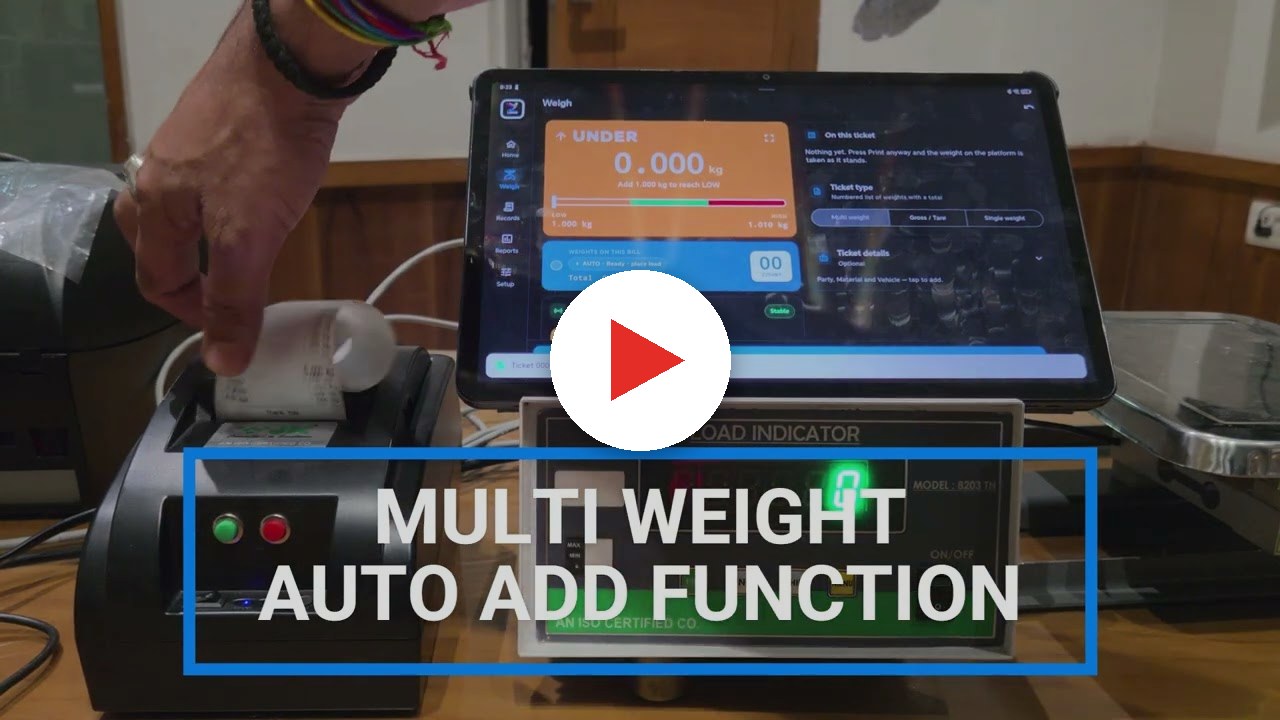
- Multi-item batch printing: Prints weights for several items together, including totals and averages.
Each mode fits different business needs, from simple sales to complex batch processing.
Single Weight Mode
This is the simplest print mode. It prints the weight of one item or load as soon as you place it on the scale. For example, if you run a kirana shop and weigh a sack of rice or a box of vegetables, single weight printing gives you a quick receipt showing just that weight.
This mode is quick and straightforward. You don’t have to worry about extra calculations or details. It’s ideal for shops or small businesses where each transaction involves one item or package.
The universal thermal printer connects directly to your weighing scale via RS-232 and prints these weights instantly without needing a PC or extra hardware. This saves time and reduces errors in busy retail environments.
When using single weight mode, make sure the scale is stable before printing to avoid inaccurate readings. Regularly calibrate your scale and check the printer’s paper roll to ensure smooth operation. Keeping the printer clean and free from dust will also help maintain print quality.
Gross, Tare, and Net Modes
- Gross weight: The total weight of the product plus its container.
- Tare weight: The weight of the container or packaging alone.
- Net weight: The actual weight of the product after subtracting the tare.
For example, if you weigh a crate of fruits, the gross weight is the crate plus fruits. The tare is the crate’s weight, and the net is just the fruits. The printer calculates the net weight automatically and prints all three values clearly on the receipt.
This mode is common in retail shops, mandis, and logistics where accurate net weight is essential for billing and record-keeping.
To use gross, tare, and net modes effectively, always zero the scale with the container on it before adding the product. This ensures the tare weight is correctly recorded. If you handle different containers, keep a record of their tare weights for quick reference. Also, check the printer settings to confirm that all three weights are included on the receipt as needed.
Batch Printing Mode
Batch printing prints weights for multiple items together. It includes:
- Total number of pieces
- Average weight
- Minimum and maximum weights
This helps you track inventory or scrap materials efficiently. For example, a scrap yard weighing different metal pieces can get a detailed printout showing each piece’s weight plus the total and average weights.
The universal thermal printer supports multi-item batch printing with smart calculations built in. It prints all this information automatically, saving you from manual calculations and paperwork.
When using batch printing, organize items clearly on the scale and ensure each piece is weighed separately if needed. Keep the scale clean and free from debris to avoid weight errors. Review the printed batch report to verify totals and averages before finalizing your records.
Triggering Prints
How the printer starts printing is also important for your workflow. The universal thermal printer offers two options:
- Auto print: The printer prints automatically when a stable weight is detected.
- Manual print: You can trigger printing yourself when you want, giving you control if your process requires it.
This flexibility means the printer fits different business styles. Whether you want fast, automatic receipts in a busy mandi or manual control in a warehouse, it adapts to your needs.
To decide which print trigger suits your operation, consider how fast your workflow is and whether you need to verify weights before printing. Auto print speeds up transactions but may print unwanted weights if items are unstable. Manual print gives you control but requires extra steps.
See it in action
Conclusion
Understanding print modes for weight printers helps you choose the right setup for your business. Single weight mode works well for simple transactions, gross/tare/net mode is essential for retail and logistics, and batch printing suits warehouses and scrap yards.
The universal thermal printer from JB Corporation supports all these modes with smart features like automatic calculations, mobile app control, and direct RS-232 connection to any weighing scale. It prints clear, customizable receipts on 58 mm paper without needing extra hardware or a PC.
Before purchasing, assess your typical weighing tasks and volume to select the print mode that matches your needs. Train your staff on how to use the printer and scale properly to avoid errors and delays. Regular maintenance of both scale and printer will ensure consistent performance and longer equipment life.
Frequently asked questions
Can this printer connect to any brand of weighing scale?
Yes, it connects directly via the RS-232 port and is compatible with any brand.
Does it require a PC or external hardware to operate?
No, the printer has built-in processing and does not need external hardware or a PC.
What print modes does the printer support?
It supports single weight, gross/tare/net, and multi-item batch print modes.
Can I customize the receipt headers and footers?
Yes, headers, footers, font sizes, and details like party name and vehicle number are fully editable.
If you want to improve your weighing and printing process with a reliable, versatile printer, contact us to learn more about the universal thermal printer. Price on request.
About the Author
JB Corporation is a member of the JB Corporation team with expertise in our products and industry solutions.